One of the most used features in HubSpot is a form to capture leads. My clients love this setup. When HubSpot is connected to their website, the second someone submits, automation can kick in: a confirmation email goes out, the contact gets enrolled in a workflow, assigned to a rep, moved to the right lifecycle stage, and scored. All without anyone lifting a finger.
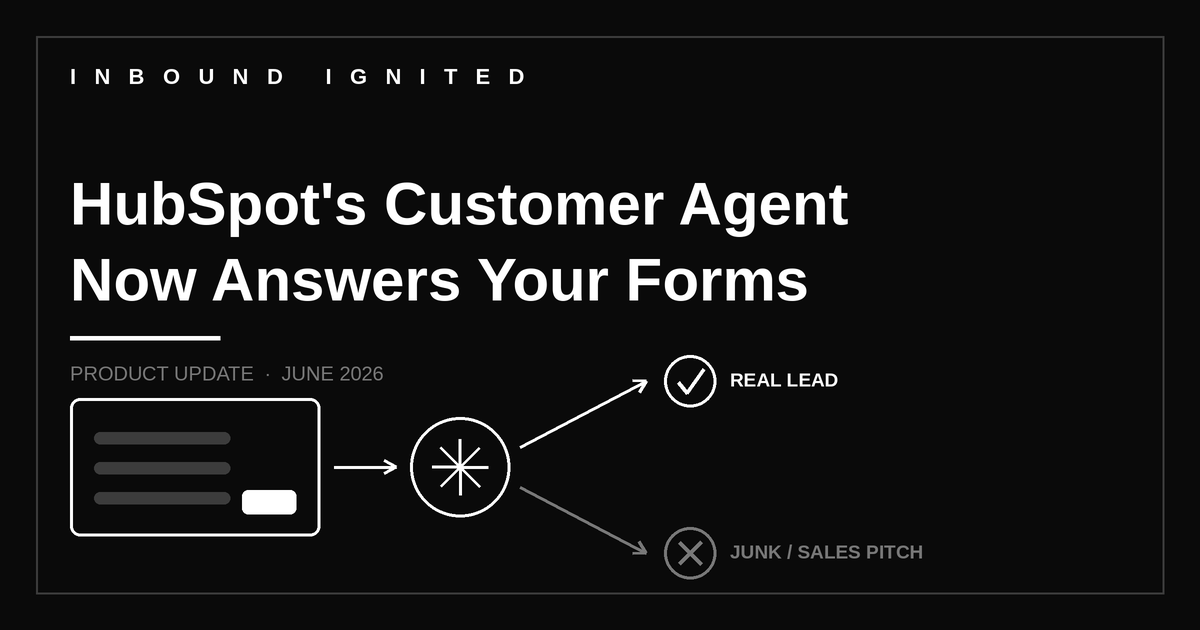
Where forms fall down is qualifying the lead itself. People enter fake emails, personal Gmail addresses, or incomplete info to get past the gate. Some are salespeople using your form to pitch you, not buy from you. You end up with a contact database full of junk that pollutes your reporting and wastes your sales team's time.
Additionally, and the most likely use case, clients using a support form on the website can hook up the AI Agent to their "Get Help" forms on their website.
This is where HubSpot's latest release can help.
What HubSpot shipped
As of June 22, HubSpot's Customer Agent can be deployed to a new channel: forms. It is generally available on Professional and Enterprise tiers across Marketing, Sales, Service, Content, Data, and Smart CRM Hubs, and it runs on HubSpot Credits. Until now the agent handled live chat, email, Facebook, and WhatsApp. Now you can point it at a form, so when someone submits, the agent picks up the conversation and replies. HubSpot documents it in its deploy the customer agent to channels guide.
The idea is that the agent becomes the first touch on a form fill. It can answer the obvious questions right away, ask for the information your form did not capture, and decide whether the submission is worth a person's time. A real prospect gets an instant response. The salesperson fishing for a meeting, or the fake Gmail address, gets handled by the agent instead of landing on a rep's desk.
How to set it up
The controls live under the Customer Agent's Deploy section, not your form editor.
- Go to Service > Customer Agent, then click Deploy > Channels in the left sidebar.
- Click Deploy agent and select your forms channel from the dropdown.
- Set the Customer agent reply email value. A form channel requires it, because the agent's reply goes out as email against the submission.
- Set Working Hours. You can run the agent all hours, only during set hours, or only outside set hours, which is the after-hours coverage case.
- Set Conversation coverage, the percentage of submissions you want the agent to take. Keep it low while you evaluate.
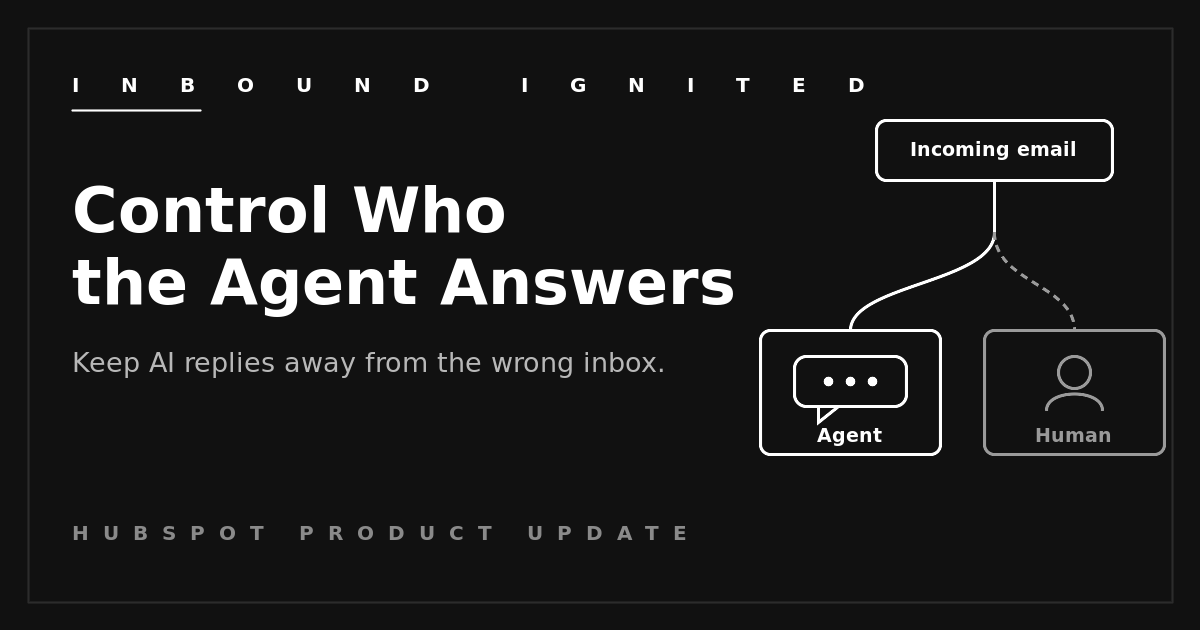
- Configure handoff so low-confidence or flagged conversations route to a person.
- Click Deploy.
If you want the agent on only certain submissions rather than a flat percentage of all of them, do not deploy it straight to the channel. Deploy it through a workflow or a rule-based chatbot instead, where you can set routing criteria on contact or submission properties.
These steps follow HubSpot's current setup guide. The deploy screens only appear once you have created an agent, so confirm the exact labels in your own portal as you go.
What to watch
Here is where I pump the brakes. I do not recommend turning one of these agents loose on your form submissions right now, unless you have fully tested and vetted it first. An AI answering your inbound on its own, with no one watching, is a real risk, and it is not worth taking until the agent has proven it behaves.
Two things to watch while you test.
First, credits. The agent runs on HubSpot Credits, and they are spent when a conversation resolves, so a high-volume form burns through them fast. If you run out, the agent stops taking new conversations until your reset date or you buy more. Keep coverage low until you know the burn rate.
Second, trust. The agent answers from the content you trained it on, and HubSpot's own guidance is to test before you trust. Read the replies it actually sends, not the resolution rate. Check how it handles a question it should not answer. Confirm the handoff fires the moment its confidence drops. Until it clears that bar over and over, it does not belong anywhere near your live submissions.
So go narrow and slow. Pick one low-stakes form, set coverage at twenty or thirty percent, route everything else to a person, and read every reply for a few weeks. If it does not earn your trust, leave it off. If you want help deciding which forms are even candidates for this, and which should never touch an agent, that is the work Inbound Ignited does.
 Craig Leabig : Jun 24, 2026 6:41:19 AM